Connect SocialCRM to the Codex desktop app as a Streamable HTTP MCP server. Once connected, Codex can list your brand profiles, pull AI visibility data, inspect mentions, and run SocialCRM workflows directly from the same conversation where you work.
Current UI note: This guide matches the Codex desktop app labels we verified on April 20, 2026. If OpenAI moves the MCP form in a future release, the production values stay the same: Streamable HTTP,
https://socialcrm.com/mcp, and anAuthorizationheader that starts withBearer.
Prerequisites
- Codex desktop app installed and signed in
- SocialCRM account with an API key from Settings > API Keys
- Access to the production MCP endpoint:
https://socialcrm.com/mcp
Quick Start
1. Create or copy a SocialCRM API key
In SocialCRM, open Settings > API Keys and create a key that starts with sk_live_. Keep the key available because you will paste it into Codex in the next step.
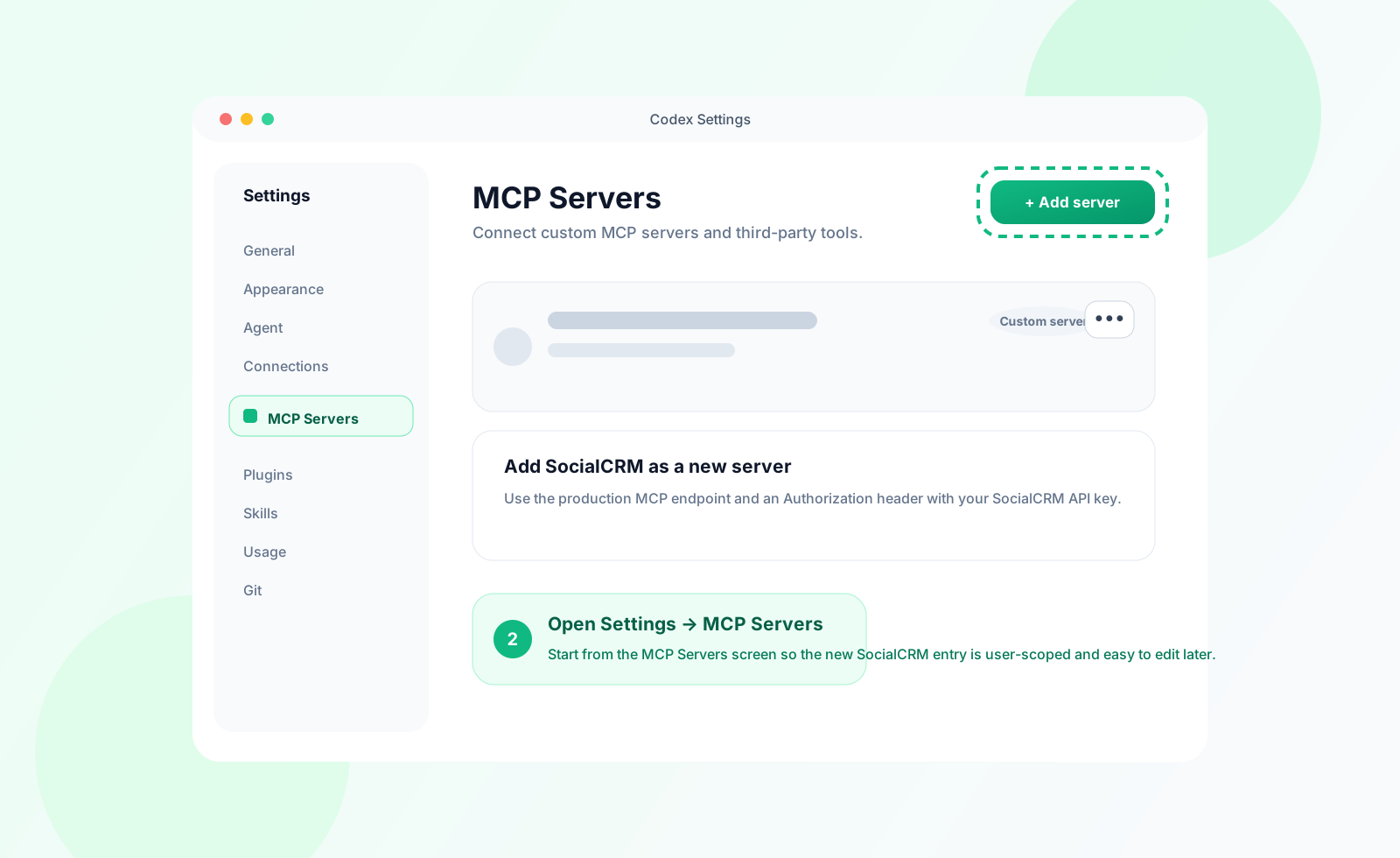
2. Open Codex Settings and go to MCP Servers
In Codex, open Settings, choose MCP Servers in the sidebar, then click Add server.
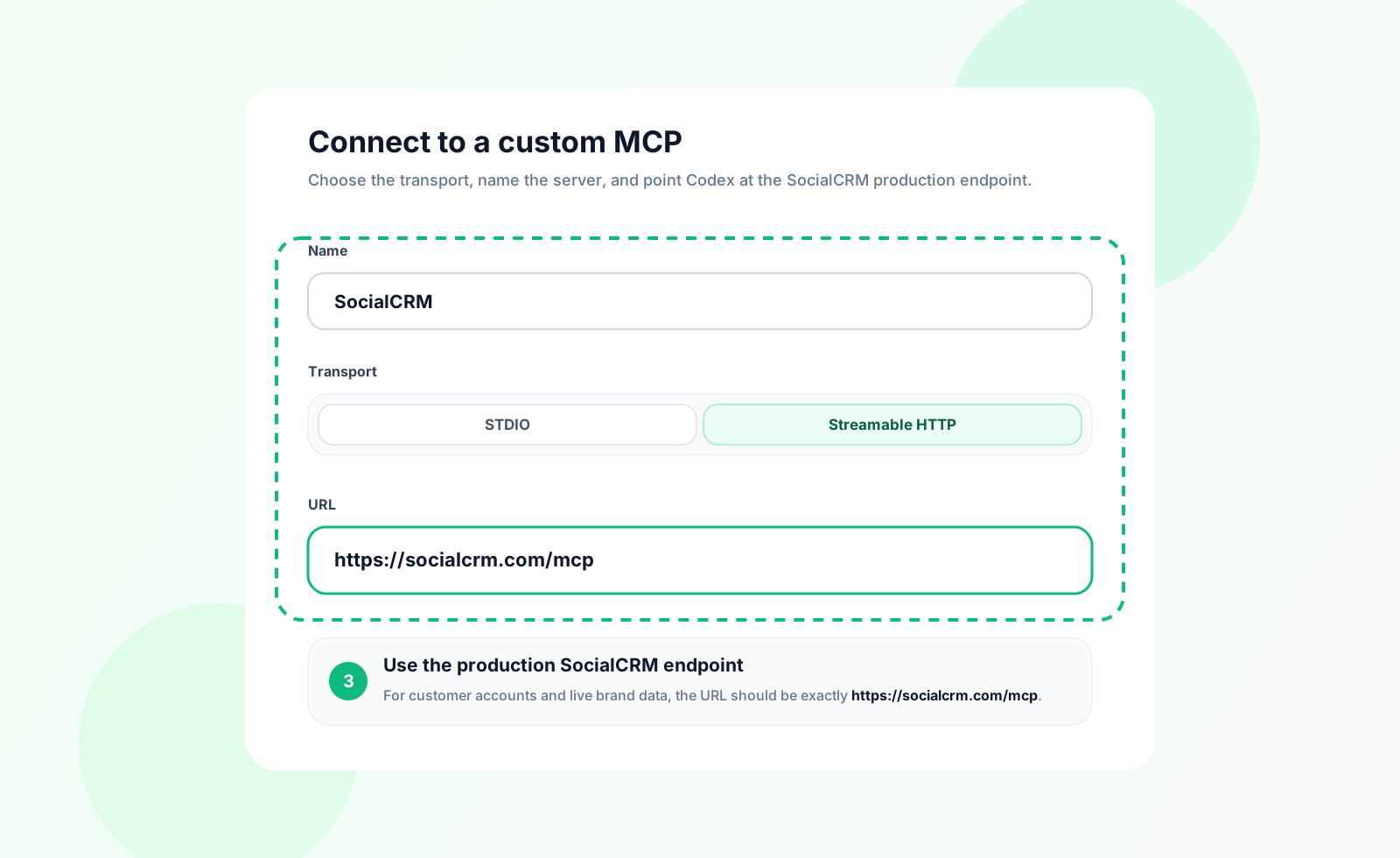
3. Choose Streamable HTTP and enter the SocialCRM endpoint
In the custom MCP form:
- Name:
SocialCRM - Transport:
Streamable HTTP - URL:
https://socialcrm.com/mcp
4. Add the Authorization header
In the Headers section, add this exact key:
- Key:
Authorization - Value:
Bearer sk_live_YOUR_KEY_HERE
Replace sk_live_YOUR_KEY_HERE with the real key you copied from SocialCRM.
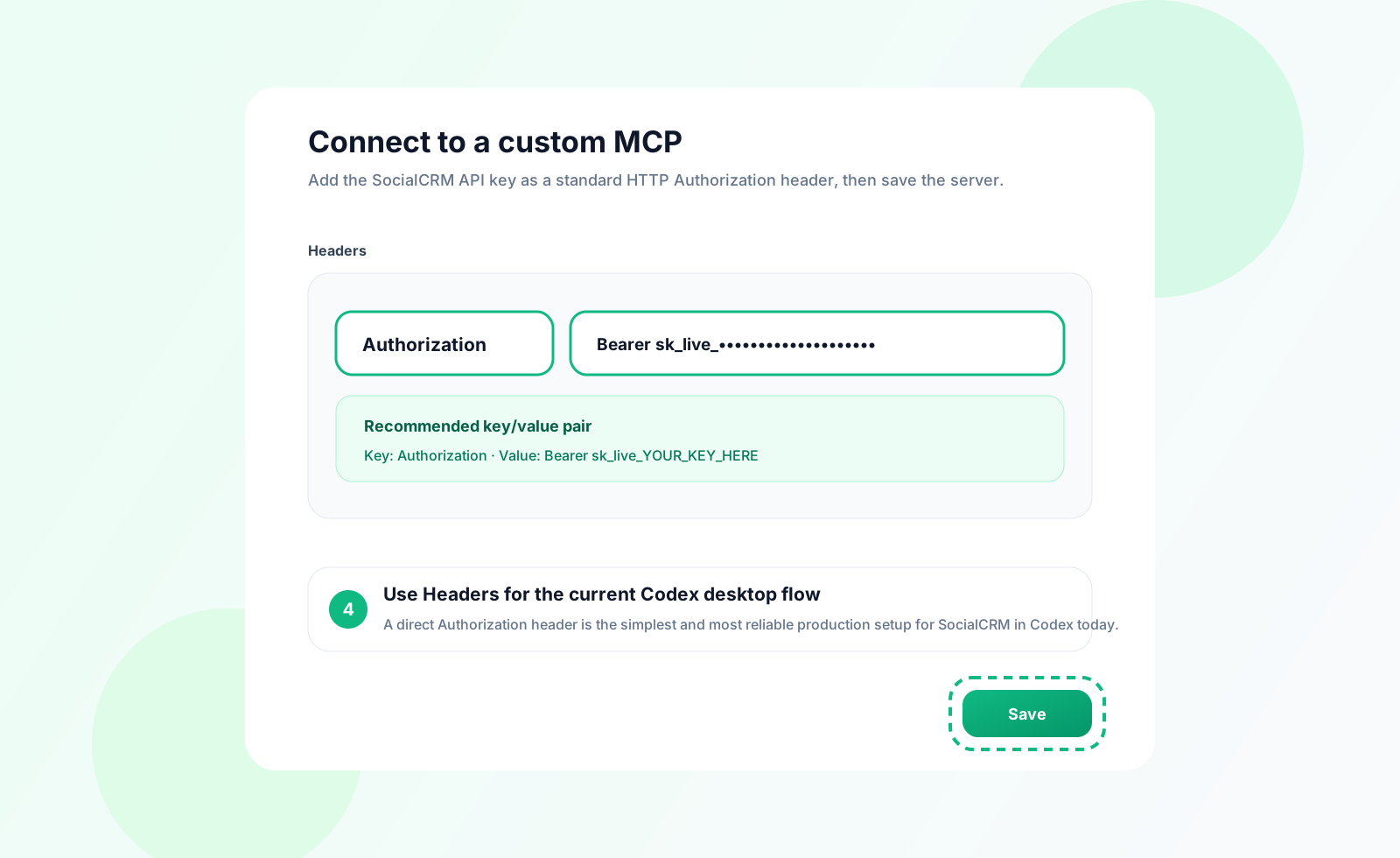
5. Save and restart Codex
Click Save. If Codex shows a Restart action in the MCP settings view, use it. Otherwise close and reopen the app. Give the server a few seconds to initialize after restart.
6. Verify the connection
Try one of these prompts in Codex:
- "List my brand profiles"
- "Get platform metrics for my main brand"
- "Show recent mentions for Stevens Creek Toyota"
- "List available workflows and check my credit balance"
If the server is connected correctly, Codex should discover the SocialCRM MCP tools automatically and call them without any extra setup.
Manual Configuration
If you prefer to configure Codex by editing the config file directly, add this to ~/.codex/config.toml:
[mcp_servers.socialcrm]
url = "https://socialcrm.com/mcp"
http_headers = { Authorization = "Bearer sk_live_YOUR_KEY_HERE" }
startup_timeout_sec = 20
tool_timeout_sec = 120
Then restart Codex.
Tip: Use
~/.codex/config.tomlfor a user-wide setup. If you place the server in<project>/.codex/config.toml, it becomes project-scoped and may appear read-only inside the Codex settings UI.
What You Can Ask
Once SocialCRM is connected, Codex can translate natural language requests into SocialCRM MCP calls. Good starter prompts include:
- "List my brand profiles"
- "Get the AI visibility score for my main brand"
- "Show recent mentions across ChatGPT, Claude, and Gemini"
- "List available workflows"
- "Run the AI Shop Checkup workflow for Pacific Ford"
Troubleshooting
The server saves, but tools do not appear
Restart Codex completely or use the MCP restart action in Settings. The server usually appears within a few seconds after relaunch.
Authentication failed or the server returns 401 / 403
Double-check the header value. It must begin with Bearer followed by your full SocialCRM API key. If needed, generate a new key in Settings > API Keys.
I used Environment variables instead of Headers
In the current Codex desktop build, the most reliable setup for SocialCRM is a literal Authorization header in the Headers section. If your team manages secrets through environment variables, verify your Codex build supports HTTP header mapping before relying on it.
I need a local development server instead of production
Replace the URL with http://localhost:3000/mcp and keep the same Authorization header format. Use this only for a local SocialCRM development environment.
Related
- Claude Code — similar MCP workflow in Anthropic's coding environment
- Generic MCP Client — transport details for any MCP-compatible client
- Authentication — API keys, auth flow, and security guidance
- JSON-RPC 2.0 Protocol — request and response format behind the MCP server